A crew is a private space for your people. Use one when a full group feels too heavy, but a direct message is too small for chat, plans, and invites.
Where to find it: Open Groups. If you have no crews, click Start a crew. If you already have crews, use the New crew chip in the Your crews shelf.
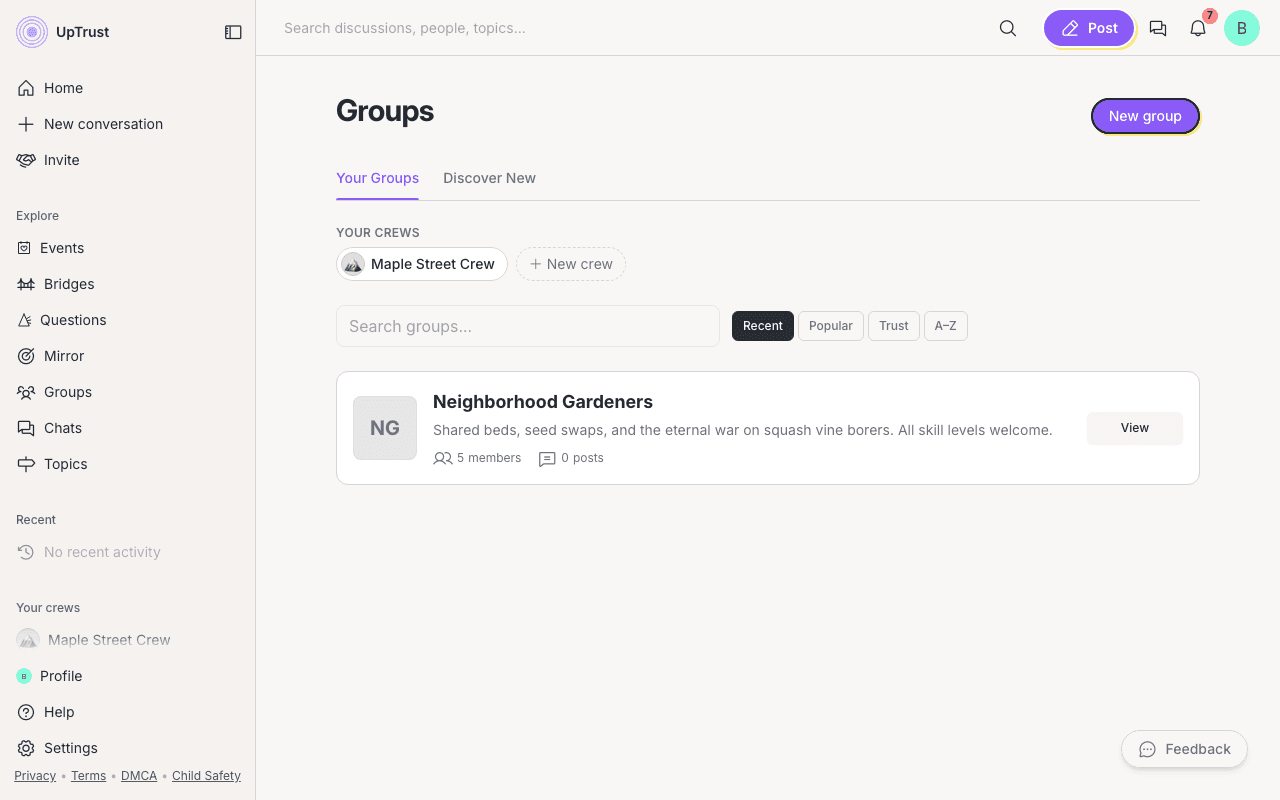
Start a crew
- Click Start a crew or New crew.
- Add a Crew name.
- Use Add people to search for people to add.
- Pick a Crew mark. You can change the emoji, choose no emoji, or pick a tint.
- Click Create crew. People you add join right away, and you land in the crew room.
Inside a crew
A crew has one Chat, one Plans area, a People view, and Settings. Crews skip the heavier group tools like Decisions, Money, Bridges, Collections, and extra channels.
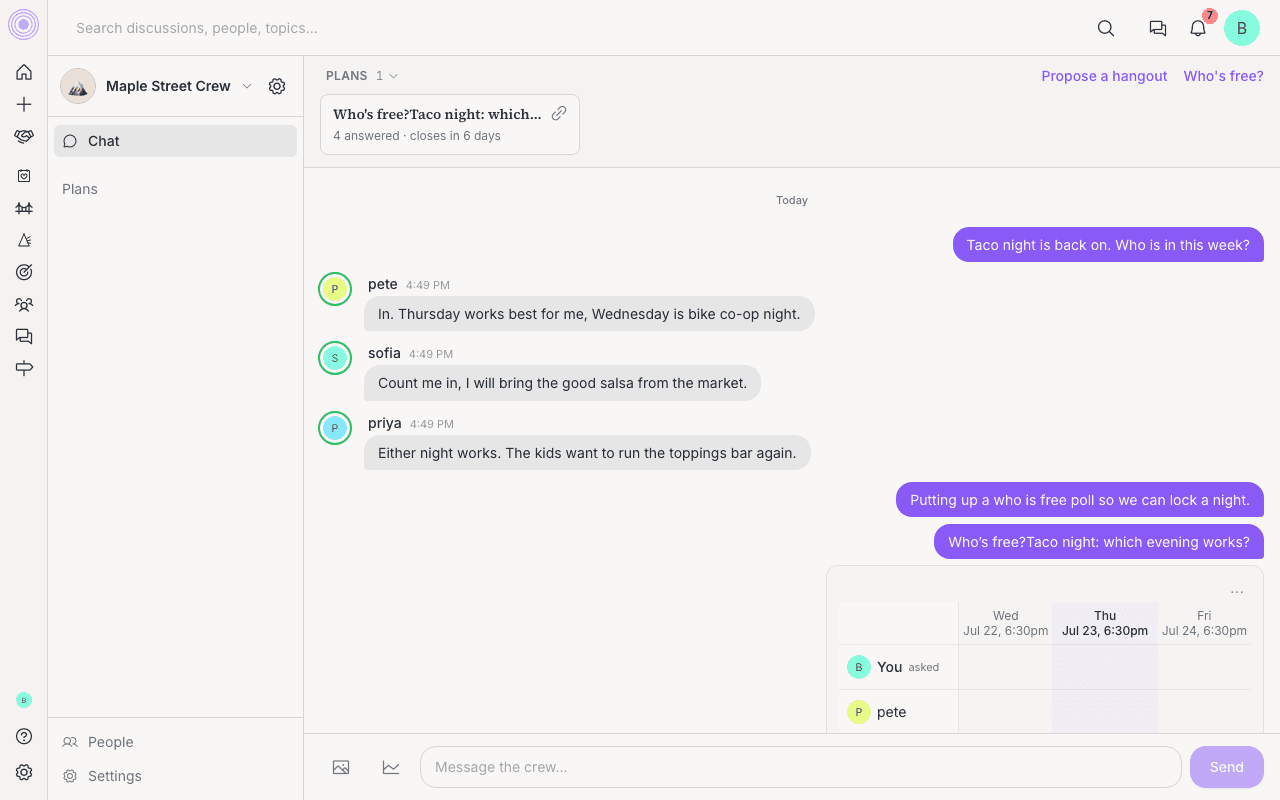
The crew chat box says Message the crew. Empty crews with people already added show When's the first hang? with Find a time, Propose a hangout, and or just say hi.
Find crews again
Crews appear in the left sidebar under People when you have any. Inside a crew, click the crew name at the top of the rail to open the Your crews switcher, or use Start a crew there.
No pin step
Add people and vouch
Open People to see the crew as a faces grid. Use Add people to invite more people, or Copy invite link to share a crew invite link.
On another crewmate's face, open the three-dots menu and choose Vouch to start the same vouch flow you can use from a profile. Admins can also make another member an admin or remove someone from the crew.
Plan the next hangout
Use Find a time to meet for Who's free? polls, public availability links, Make it a plan, and Free right now.