Settings is the one place where you control your account and how UpTrust treats you. A few minutes here makes the rest of the site feel like yours.
Where to find it: Click your name at the bottom of the left sidebar, then choose Settings. On a phone, tap your picture at the top left. Or just go to the Settings page.
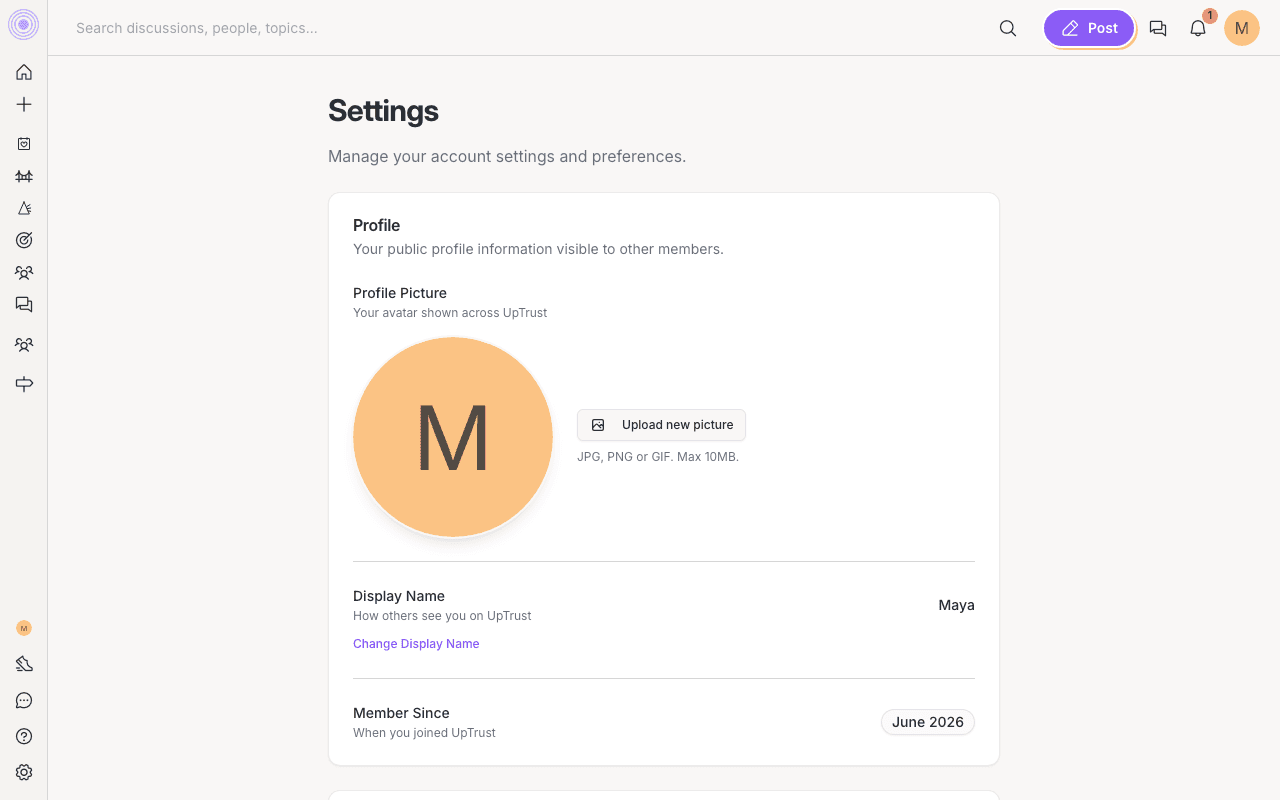
What each section does
- Profile. Your picture and display name, plus the date you joined. See your profile.
- Account. Your email, password, and phone number. See email, password, and phone.
- Connected Accounts. Link GitHub (your account and your stars, in one click), ORCID, and X, and add your Google reviews. See connected accounts.
- Founding cohort. Shows only when we have an offer for you.
- Payments. Connect Stripe to charge for tickets on events you host. See paid events.
- Connected Agents. AI helpers you've let use your trust network. See connected AI agents, or connect an AI assistant to add one.
- Notifications. Pick which alerts you get and where they reach you. See notification settings.
- Messages. Choose who can start a chat with you. See direct messages.
- Feed. Control what shows up, like hiding bot accounts.
- Sound & touch. Turn Tactile feedback on or off on your device.
- Danger Zone. Delete your account. See delete your account.
Tip
Most changes save the moment you make them. There's no big Save button at the bottom, so you can change one thing and leave.