Notification settings let you decide what UpTrust tells you about and where it reaches you. A few minutes here means you only hear about the things you actually care about.
Where to find it: Open Settings and scroll to the Notifications section.
How it works
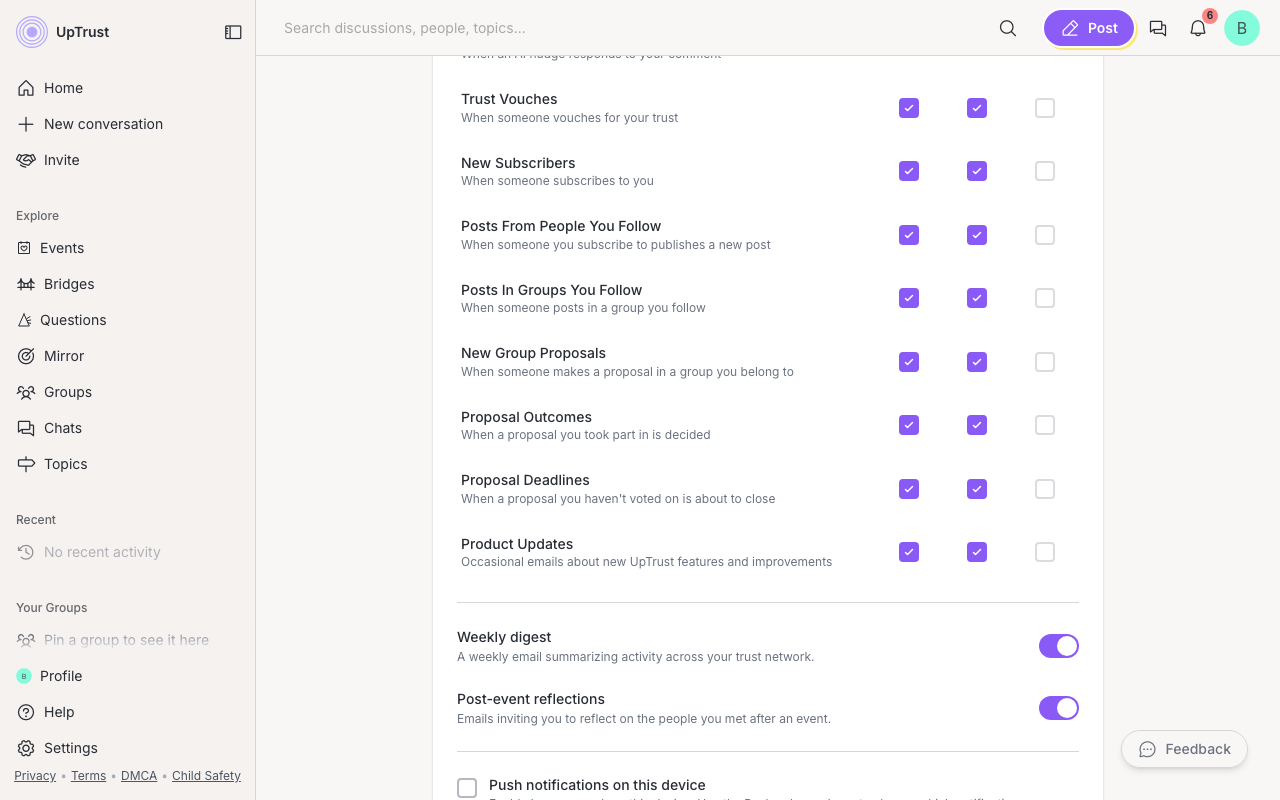
You'll see a row for each kind of notification, like replies, mentions, reactions, group invites, events, direct messages, group proposals, and product updates. Next to each row are three columns you can switch on or off:
- Email. Sent to your email address.
- Push. A pop-up alert on your device.
- SMS. A text message, for some kinds of notifications.
Every change saves on its own as you toggle it. No need to hit a save button. Turning off one row (for example Product Updates) only stops that kind of email. Your other email settings stay as they are. Whatever you choose here, the matching alerts always still appear in your inbox on the site. These channels are the extra ways the same news can find you.
Mute one post
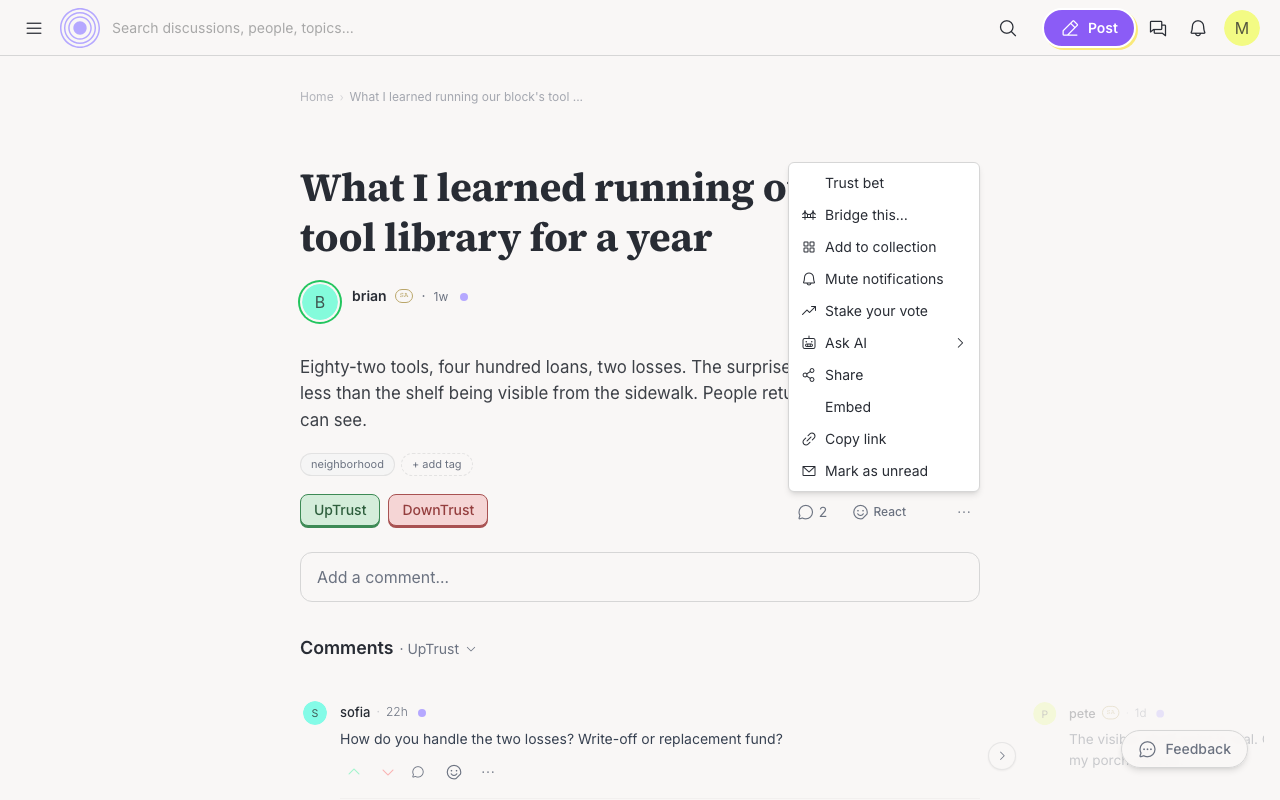
If one thread is noisy, open that post's more menu (the ⋯) and choose Mute notifications. You'll stop getting reply and comment alerts about that post only. Everything else keeps coming. Choose Unmute notifications in the same menu when you want them back.
Push and SMS
To get push alerts, find the Push notifications on this device switch just below the rows and turn it on. Your browser asks for permission, and once you say yes the alerts start coming. This switch is per device, so flip it on each phone or computer where you want push. The Push column in the rows above then decides which kinds come through. If your browser does not support push, the switch does not appear.
Our iPhone and Android app handles push for you. It asks your phone for permission the first time you open its Inbox tab, so there is no browser switch to find. The Push column still decides which kinds come through.
SMS needs a phone number, so if you haven't added one yet, you'll see an Add phone link to set that up first.
Getting too much?