You can connect an AI assistant such as Claude, ChatGPT, or Grok to your UpTrust account. Once connected, your assistant can use your trust network when it answers you. It can rank people or posts by how much your network trusts them, check whether your network trusts someone here, and find your most trusted voices on a topic. It can also set up an event and invite people for you, which we have only confirmed in Claude.
Where to find it: You start in your assistant's own settings, under Connectors. There is nothing to switch on inside UpTrust first.
This is still a pilot
What you'll need
You need your UpTrust login and an assistant account that supports custom connectors. On all three that means a paid plan today. If you do not see a Connectors section in your assistant's settings, your plan may not include them yet.
Claude and Grok use this address: https://mcp.uptrusting.com/mcp
Copy it exactly, ending in /mcp. The address without that last part is a different thing and the dialog will refuse it. ChatGPT has its own address, below.
Connect from Claude
- Open your settings and find the Connectors section.
- Choose to add a custom connector.
- Paste the address above and confirm.
Connect from ChatGPT
- Open Settings, then Connectors, then Advanced settings, and turn on Developer mode. Custom connectors sit behind this switch.
- Back in Connectors, choose Create.
- Name it UpTrust, paste
https://mcp.uptrusting.com/chatgpt, and set Authentication to OAuth.
Developer mode lives on the ChatGPT website, not in its phone app. If you only want to send us your introduction, you can paste it in instead on any plan.
Connect from Grok
- Open the Connectors page in Grok's settings.
- Choose New Connector, then Custom.
- Paste the address above and confirm.
Approve on UpTrust
The last part is the same everywhere.
- A browser window opens on UpTrust. Sign in if you are not already signed in.
- Read what the assistant is asking for, then click Approve.
- Back in the assistant, open a chat and check its tools menu. Turn on UpTrust there if it is not already on.
That is it. There are no keys or codes to copy. If the assistant says the connection was refused, that is the pilot limit above rather than something you did wrong.
What the assistant asks permission for
The consent screen shows exactly what access the assistant is asking for. Depending on what it asks for, you will see one or more of these.
- Read your trust signal: your trust rankings, trust bands, most trusted connections, bridges, and mirror scores.
- Suggest people you should meet, only if requested: the assistant surfaces people in and next to your trust network. This one only reads.
- Create events and send invitations for you, only if requested: the assistant can set up an event, suggest invitees, and send the invitations you confirm.
- Import your introduction and publish asks for you, only if requested. This one can write: if you ask your assistant to submit the introduction it drafted about you, up to five of its open questions get posted under your name, labeled "imported". You can retract any of them at any time.
- Post for you, only if requested. This one can write: the assistant can post messages under your name, exactly as if you had typed them. Today that means posting on your feed, where anyone can read it, and editing your own posts; and finding the groups and channels you belong to, posting a message, a thread reply or an emoji reaction in one of them, and editing or deleting your own messages and replies there, even ones you typed yourself. Deleting a message deletes everyone's replies under it, as in the app. It cannot read the messages there unless you also allow it to read your channels. New ways to post that UpTrust adds later come with this permission. You can delete any post in the app, a channel message while its channel is open.
- Read your channels, only if requested: the assistant can list the group channels you belong to with how many messages in each you have not read, and read their messages and thread replies and who reacted to them, as you see them in the app, including private channels you are in, and every private channel of a group you are an admin of. That is how it sees the answers to something it posted. Reading marks nothing as read for you.
- See who is in your groups, only if requested: the assistant can list the members of the groups you belong to, including private groups and which members are admins, and look up which of your groups a given person is in, as you see them in the app.
If the assistant asks for a new kind of access later, such as events, you will see the approval screen again. The one exception is Post for you: once you allow it, new ways to post messages are added without asking again.
What your assistant can do once connected
- Sort anything by your trust: "rank these five newsletters by how much my network trusts them."
- Check a source: "does my network trust this account?" The assistant gets a simple band (below, low, medium, high, or very high), never an exact score.
- Find your trusted voices on a topic.
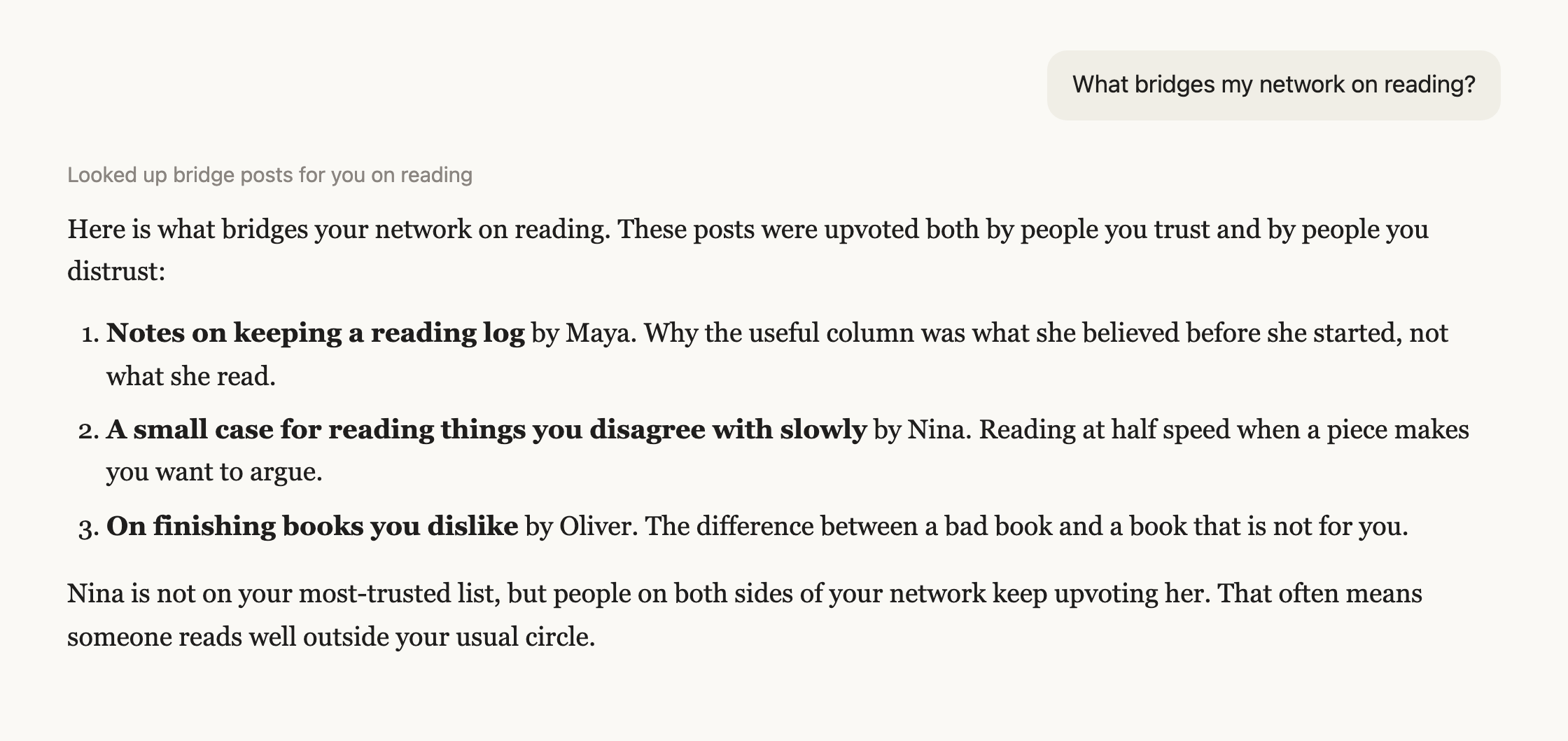
- Show you bridges: things trusted on both sides of a disagreement in your network.
- Suggest people you might want to meet, through chains of trust.
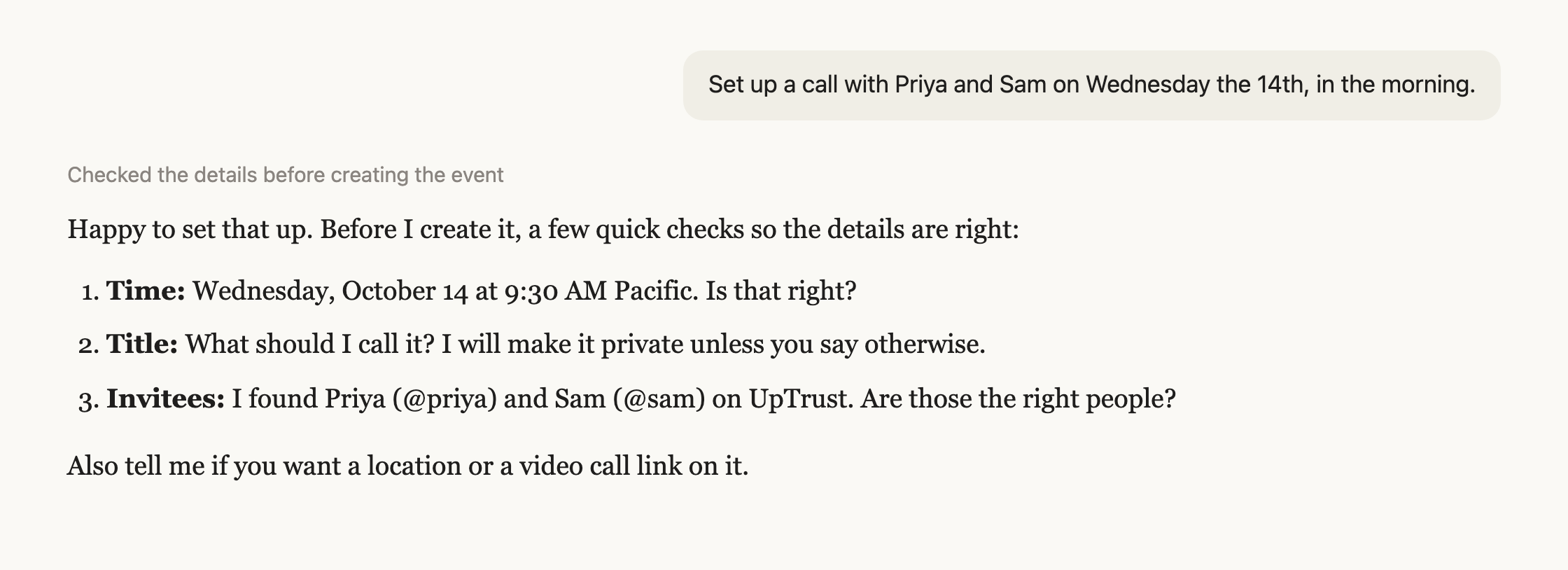
- Plan an event: "invite people to golf this Saturday." The assistant fills in the details with you, creates the event, suggests invitees your network trusts, and sends the invites you approve.
Each tool, what it answers and the exact description your assistant reads are listed on UpTrust tools for AI assistants.
Here is what that looks like in a conversation.
Your privacy
- Connected assistants never see your raw trust scores. For trust questions they get orderings and coarse bands only. They also never get other members' email addresses.
- Text you ask an assistant to mirror-score is sent to a third-party service provider to compute the score.
- There are daily limits on how much a connected assistant can ask for. Normal use will not hit them.
Disconnect anytime
Open Settings and find the Connected Agents card. Click Revoke next to the assistant you want to remove, then confirm. Revoking cuts off access right away, and you can always reconnect later. For more detail, see connected AI agents.
Try it
- "Who are my most trusted voices in psychology?"
- "What content bridges my network on parenting?"
- "Does my network trust this newsletter?"
- "Set up a coffee meetup next Friday and suggest who I should invite."