A bookmark is a post you kept for later. A list is a named set of bookmarks, like a folder. Bookmarks are private. Lists are private too, until you choose to share one.
Where to find it: Tap the bookmark on any post. To read what you kept, click Bookmarks in the left menu.
Bookmark a post
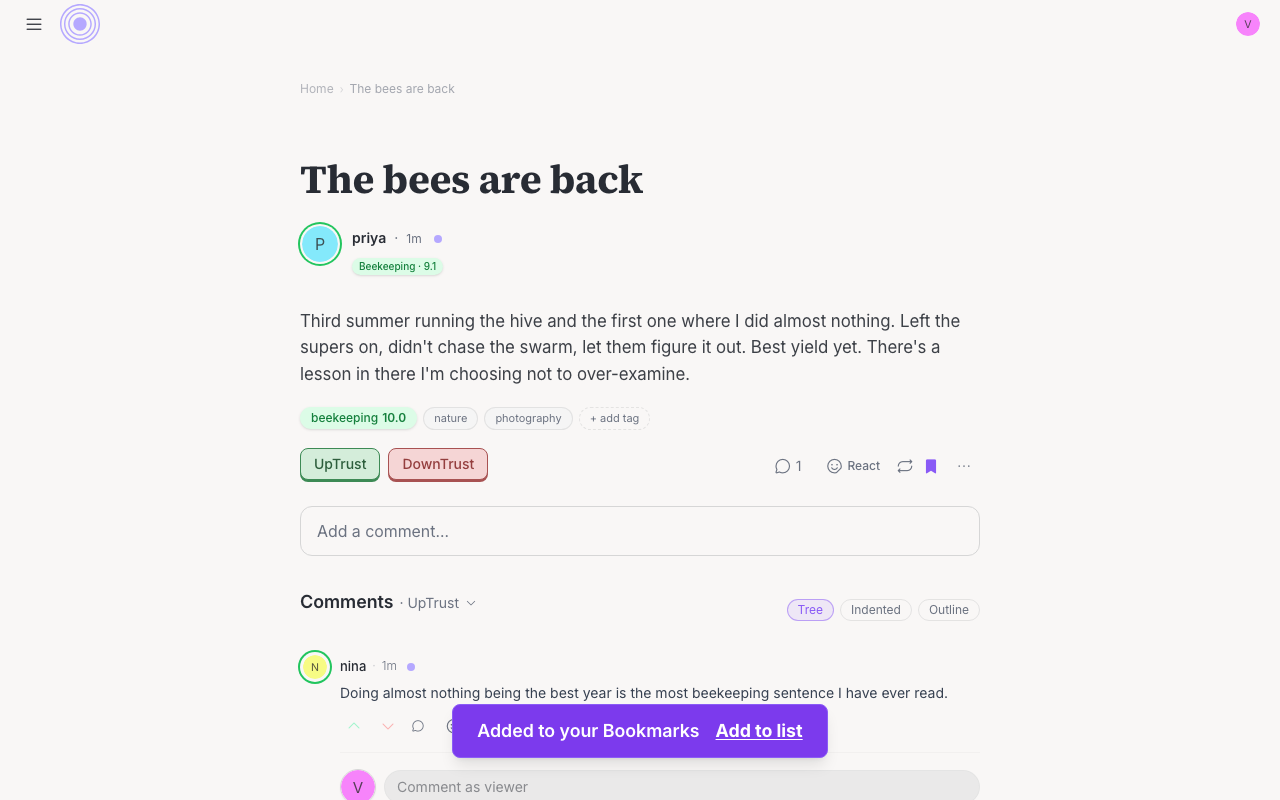
Tap the bookmark icon on a post. It fills in, and a small message says Added to your Bookmarks. No one is told, and there is no public count. Only you can see what you bookmarked.
Add it to a list
The message has an Add to list button. Tap it to pick a list, or make a new one with New list. You can also press and hold the bookmark, or right-click it, to open the same picker at any time. A post can sit in as many lists as you like.
Find your bookmarks
Click Bookmarks in the left menu. In the mobile app, open the menu and choose Bookmarks. All shows everything you kept. Your lists sit next to it as chips, so one tap shows just that list. Use the search box to find a post by its words.
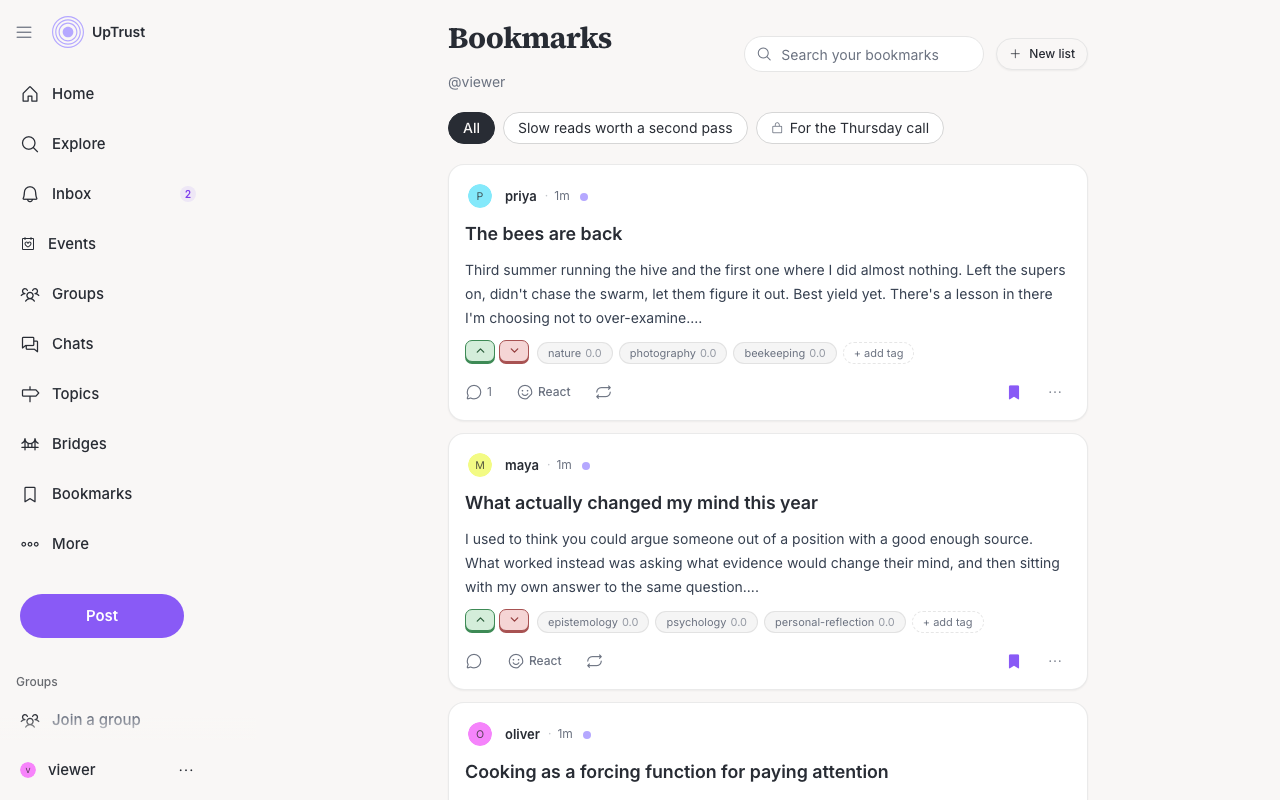
Everything in a list is a bookmark
Make a list public
A new list is private. To share one, open it, tap ..., choose Edit list, and turn on Public. A public list shows on the Lists tab of your profile, and it gets a link that anyone can open, even without an account. Use Copy link to share it. Turn Public off and the list is private again.
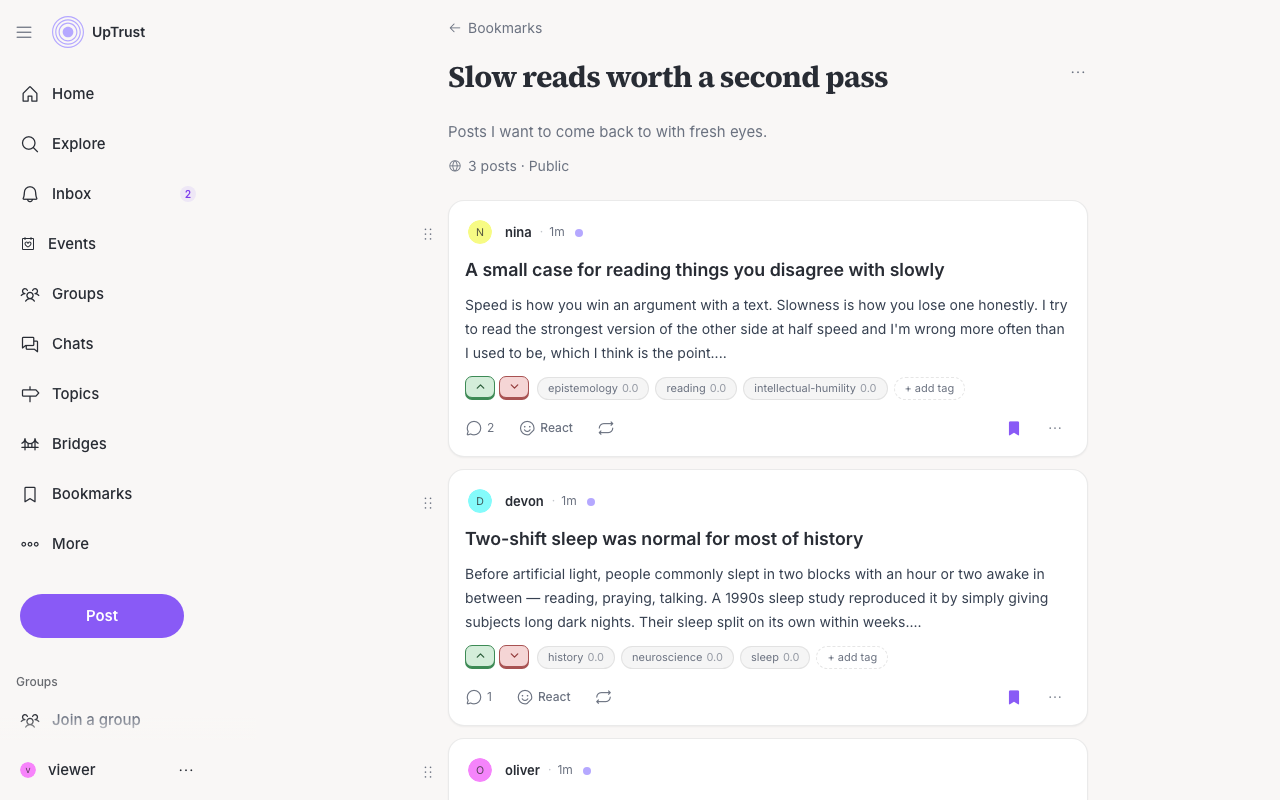
You can also turn on Number the posts for a list. That puts the posts in a numbered order, which suits a series you are writing. Inside a list, drag posts, or use the arrows, to move them.
Remove a bookmark
Tap the filled bookmark again. If the post is in one of your lists, it leaves that list too, so UpTrust asks first and names the lists. If it is in no list, it is removed right away. In both cases a message appears with Undo, and Undo puts the bookmark back, and the post back in its lists.
Group lists
Groups have lists too. A group admin makes them, and anyone signed in who can see the group can read them. Open a group and choose Lists. Putting a post in a group list does not bookmark it for you, and removing a bookmark does not change a group list.
In the app
The mobile app works the same way. Tap the bookmark on a post, press and hold it to add the post to a list, and open Bookmarks from the menu to see everything you kept.