Connected accounts help people verify what you've built or reviewed outside UpTrust. They add context to your profile and help your trust network learn from work you already did.
Where to find it: Open Settings and find the Connected Accounts card.
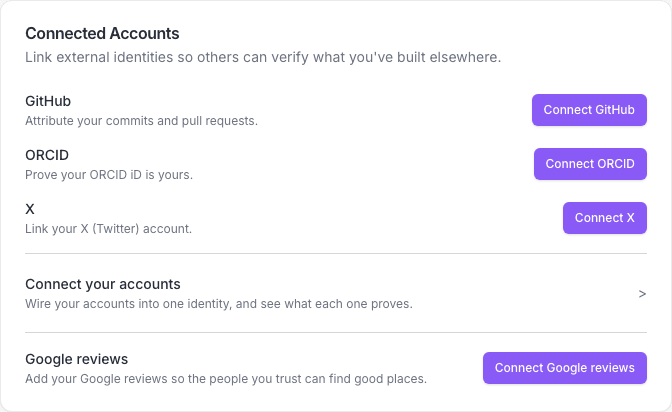
Link GitHub, ORCID, or X
The card has a row for each account you can link:
- GitHub: attribute your commits and pull requests.
- ORCID: prove your ORCID iD is yours.
- X: link your X (Twitter) account.
- Click Connect GitHub, Connect ORCID, or Connect X.
- Approve the screen that opens on that site.
- Come back to Settings. The row shows the name you linked.
To unlink one later, click Disconnect on its row.
Show your X handle on your profile
Once X is linked, a switch appears under it. It reads Show @yourhandle on my profile, with your own handle, and it starts on. Anyone who opens your profile sees your handle and can tap through to your X page. Turn it off and nobody sees it.
Add Google reviews
- In the Google reviews row, click Connect Google reviews.
- Follow the steps in the popup to download your Maps (your places) file from Google Takeout.
- Choose the Reviews.json file. UpTrust reads the file and shows how many reviews were imported.
To replace the file later, click Re-upload. To remove the reviews from UpTrust, click Remove my reviews.
Only connect what you mean to share
Linked accounts can help people trust your work, but you stay in control. You can disconnect any linked account or remove your reviews from Settings.